Documentation
PROTIDE
This document gives a general introduction to PROTIDE and indicates how to add a new transit, how to start and monitor calculations and how to view the calculation results. It is specifically written for users with a role as an Agent, Provider, Port Authority, Pilot and/or Stakeholder. Depending on the rights of the user some content may not be available.
Modules
The following modules are available:
Website layout
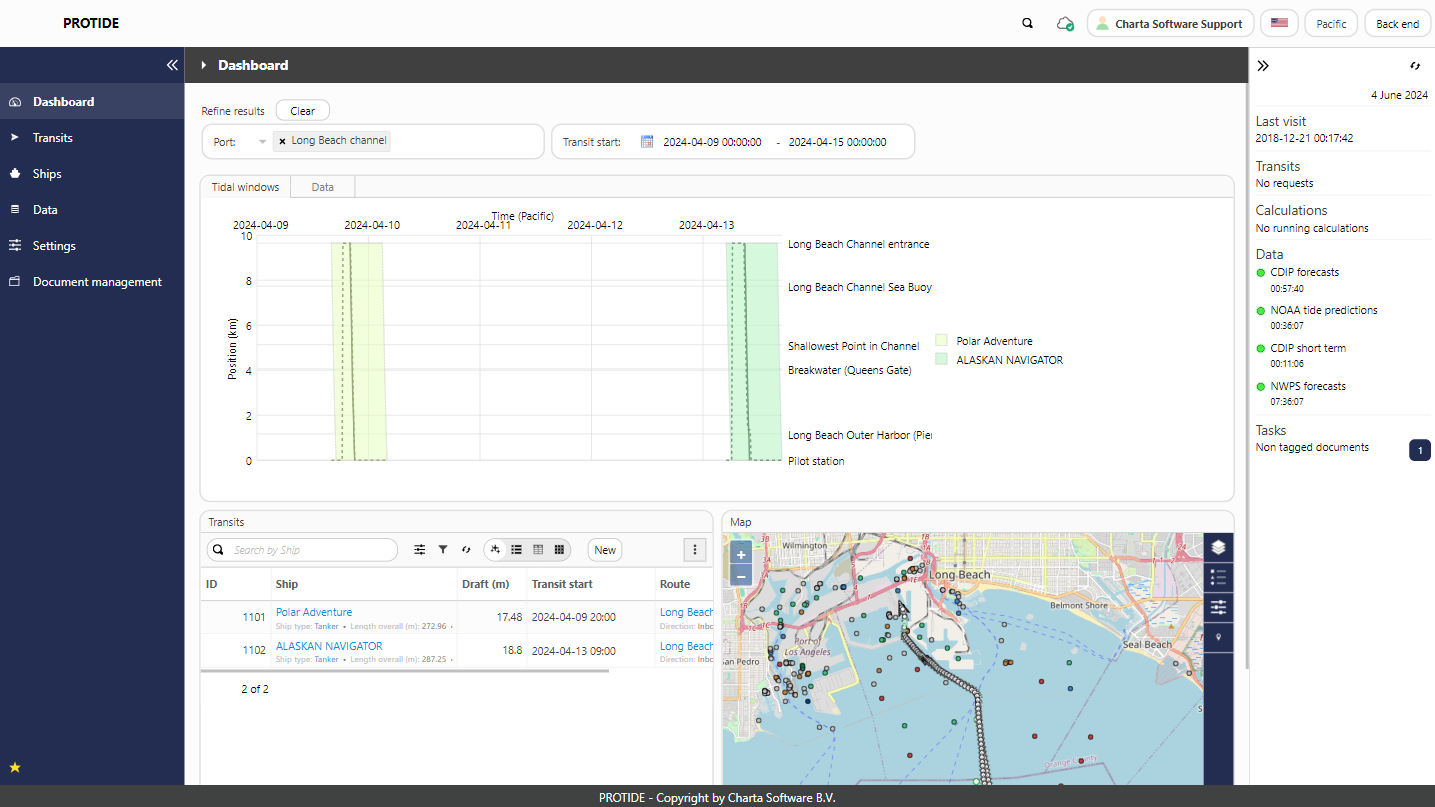
After signing in, a user will be redirected to the back end, where the main menu and notification overview are shown.
Menu
The main menu (side panel on the left) divides the various PROTIDE functionalities into several modules, where each module has its own icon. A module can contain submodules that will be displayed in a separate side panel when the module is open. The module and submodule panels are both horizontally collapsible. Within the submodule panel, the child elements of a submodule can be vertically collapsed. If a user does not have access to certain functionality, it will not be shown in the menu structure.
Website toolbar
Search
By clicking on the magnifying glass, the user can search for (sub)modules and ships. This functionality is also accessible by pressing the / key on the keyboard.
Synchronization
The cloud icon indicates whether synchronization is active.
Username
By clicking on their username, the user can sign out or navigate to My account where for example the password can be changed or multi-factor authentication can be set up.
Language
Switch between the available languages of translatable parts of the site.
Time zone
Switch between time zones, e.g. UTC, Amsterdam, Pacific.
Portals
Switch between the different portals on the site: Front end, Back end, API, Website management, and Documentation.
Notification overview
The notification overview (side panel on the right) shows a centralized summary of relevant system updates and user-related information. It is limited to what the user has access to and is divided into the following categories: Last visit, Transits, Calculations, Data, Calendar, Tasks, and Analysis. This overview shows for example if there are any running calculations, which transits are planned in the next few days or have just arrived/departed and which tasks are open for the user. An indicator shows (if configured) if there are any issues with either transits or data sources.
Keyboard/mouse shortcuts
Throughout the website a number of keyboard and mouse shortcuts are available to navigate and operate the interface quickly. The shortcuts below apply to the element that currently has the focus.
Website search
| Shortcut | Action |
|---|---|
| / | Open the website search modal. |
| Arrow keys | Move between the search results. |
| Enter | Open the focused search result. |
| Escape | Close the website search modal. |
Table
| Shortcut | Action |
|---|---|
| Arrow keys | Move the focus to the previous or next row. |
| Home / End | Move the focus to the first or last row. |
| Enter | Open the focused row. |
| Space | Select or deselect the focused row. |
| Shift + Space / Shift + Click | Select a range of rows. |
| Ctrl + A | Select all rows. |
| Ctrl + Shift + A | Deselect all rows. |
| F5 | Refresh the table. |
| Alt + Shift + X | Toggle expert mode. |
Form
| Shortcut | Action |
|---|---|
| Ctrl + Enter | Confirm and submit the form. |
| Escape | Cancel and close the form. |
Expandable field
These shortcuts apply to fields that can open a list of choices, such as drop-down fields and date/period selectors.
| Shortcut | Action |
|---|---|
| Ctrl + Space | Open or close the field. |
| Arrow keys | Move between options. |
| Home / End | Move to the first or last option. |
| Space | Select or deselect the focused option. |
| Enter | Select the focused option and close the field. |
| Escape | Close the field. |
| Backspace | Remove the last selected value (when the input is empty). |
Checkbox
| Shortcut | Action |
|---|---|
| Space / Enter | Select or deselect the focused checkbox. |
Tab
| Shortcut | Action |
|---|---|
| Arrow keys | Switch to the previous or next tab. |
| Home / End | Switch to the first or last tab. |
Map
| Shortcut | Action |
|---|---|
| Ctrl + Hover | Show information about the feature under the cursor (if available). |
Confirmation dialog
| Shortcut | Action |
|---|---|
| Enter | Confirm the action. |
| Escape | Cancel the action. |